Widgets
Files
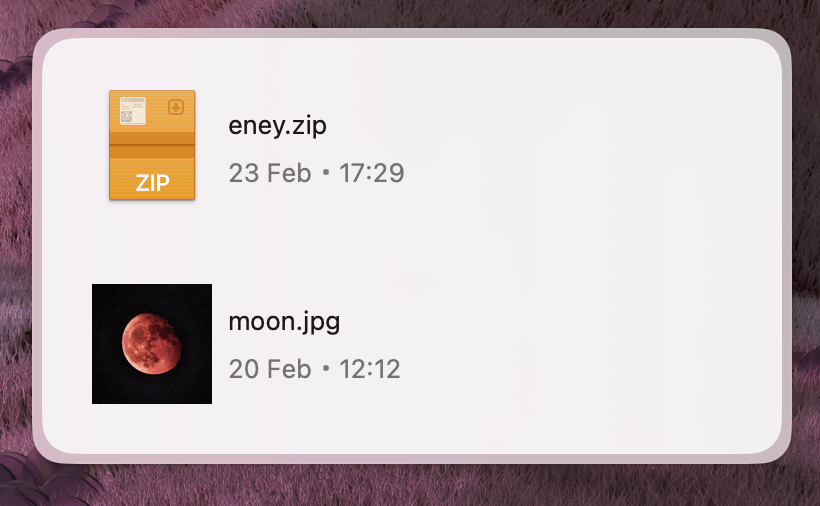
Shows output files after a task completes. Users can click each file to open it.
Properties
Files
The main container for the file list.
| Property | Description | Type | Default | Required |
|---|---|---|---|---|
children | Files.Item components | React.ReactNode | — | Yes |
Files.Item
Represents an individual file within the list.
| Property | Description | Type | Default | Required |
|---|---|---|---|---|
path | Absolute path to the file | string | — | Yes |
Usage
To display files, wrap individual Files.Item components inside the Files parent component.
Basic
You can map through an array of file paths to generate the list dynamically:
import { Files } from "@eney/api";

function OutputFiles(props: { paths: string[] }) {
  return (
    <Files>
      {props.paths.map((file) => (
        <Files.Item key={file} path={file} />
      ))}
    </Files>
  );
}
Full example — file processing widget
Ideal for showing results after a process, like an image optimizer. If files exist, the widget shows the file list; otherwise, it shows the upload form:
import { useState } from "react";
import { Form, Action, ActionPanel, Files } from "@eney/api";

function ImageOptimizer() {
  const [inputImage, setInputImage] = useState("");
  const [outputFiles, setOutputFiles] = useState<string[]>([]);
  const [loading, setLoading] = useState(false);

  async function onSubmit() {
    setLoading(true);
    // process the image and produce output files
    const optimized = [
      "/output/image-optimized.webp",
      "/output/image-compressed.jpg",
    ];
    setOutputFiles(optimized);
    setLoading(false);
  }

  if (outputFiles.length > 0) {
    return (
      <Files>
        {outputFiles.map((file) => (
          <Files.Item key={file} path={file} />
        ))}
      </Files>
    );
  }

  return (
    <Form
      actions={
        <ActionPanel>
          <Action.SubmitForm
            title={loading ? "Optimizing..." : "Optimize"}
            onSubmit={onSubmit}
            isLoading={loading}
          />
        </ActionPanel>
      }
    >
      <Form.FilePicker
        name="inputImage"
        label="Select image"
        value={inputImage}
        onChange={setInputImage}
      />
    </Form>
  );
}